What Is modouFusion?
modouFusion is a Hi-Fi analog rack for the whole Mac. Music apps, video, browsers and games all play into it, and it sends the sound on to your DAC or headphone amplifier through a tube stage, a harmonic shaper, stereo controls with a headphone crossfeed and a device-correction EQ.
No plug-in host and no audio interface with a mixer are needed: a simple USB DAC — or the Mac's own headphone output — is enough. modouFusion installs its own audio driver and does the routing for you.
In one sentence
Everything you play passes through one warm, carefully modelled analog chain — or, at the press of PURE, through nothing at all, bit for bit.
TUBE ULTRA
The CYANO ULTRA triode engine with five tube types, ageing, REAL GAIN, ENHANCED strengths, a cathode-cap choice and a data-sheet card.
CONTOUR
One knob from sharp odd to warm even harmonics.
IRON
Output stages from CYANO ULTRA: two line transformers (J, C) for weight and density in the bass, or a transformerless JFET, op-amp or MOSFET stage.
CROSSFEED
Headphone crossfeed after Bauer (bs2b): hard-panned sources stop sitting inside one ear, and nothing gets louder.
STEREO IMAGE
Width and depth, with a live goniometer.
ADVANCED EQ
8-band correction EQ with profiles per output device, AutoEq import and the RTA-31 LED analyzer.
PURE
Bit-perfect pass-through; the DAC follows the source sample rate.
NEW 1.4.2 Two more tubes, ENHANCED strengths, input sources
From CYANO ULTRA 1.2.1: the 12AY7 and the E88CC / 6922, fitted to their data sheets like the other three tubes, and four ENHANCED strengths — MILD (the ENHANCED you know), WARM, HOT and STARVED — that run the colder-biased stage on a lower plate supply and drive it harder while the level stays the same. New INPUT chip in the bottom strip: choose which apps go through FUSION — players, browsers, DAWs or single apps; the others still play, unprocessed. AUTO keeps everything as before.
NEW 1.3.3 IRON ENHANCED
From CYANO ULTRA 1.1.3: an ENH switch for the J and C transformers drives the same core much harder and takes the level back after the transformer, so the bass saturates and compresses while the volume stays put. DRIVE then runs from +12 dB (the end of REAL) to a ceiling per setting — LINE +24 dB, J TUBE +20 dB, C TUBE +18 dB — the last step before 44.1 kHz aliasing rises above −80 dBc or the core model costs more CPU than a rack that always runs should. Switching fades without a click.
NEW 1.3.2 IRON returns, CONTOUR back to 10 %
IRON is back, rebuilt on the output stages of CYANO ULTRA: the J (Jensen JT-11) and C (CineMag CMOQ-3S) line transformers, driven by a line driver or a 600 Ω tube output, and T-LESS, a transformerless JFET, op-amp or MOSFET stage, each with DRIVE and AMOUNT. It sits at the top of the CROSSFEED column, CROSSFEED just below. CONTOUR goes back to 10 %: at 25 % the end of the dial sounded crushed on loud music, while 10 % is still clearly audible. Its odd side no longer makes the music louder (a slow loudness match), so a touch of ODD on a hard-driven tube changes the character, not the volume.
NEW 1.3.1 A tube that saturates, and ENHANCED
The end of WARMTH now drives each tube into saturation: from about the middle of the ring the tube starts to round off the peaks and add odd harmonics, as a line stage pushed hard does. Before, the knob stopped just short of this and the tube added only a quiet 2nd harmonic, so turning it changed little. The tube stage now runs 8× oversampled at 44.1 and 48 kHz, so saturation stays free of aliasing. New ENHANCED switch from CYANO ULTRA: a second cathode resistor biases the tube colder for about 1.3 × the distortion at the same level.
NEW 1.3.0 A tube and CONTOUR you hear, a rack that rests
WARMTH now starts where each tube begins to be heard on music (0) and ends at its clean limit (+24), so the whole knob works on every tube and no part of it is dead. CONTOUR is 2.5 times stronger (up to 25 % harmonics) and its dial shows the amount really applied. When nothing plays for about five seconds the rack rests and uses almost no CPU; in Low Power Mode the meters and animations update at half rate. If the app ends without handing the system output back, a small helper does it, and the display tells you when another app moves the system output away.
NEW 1.2.0 Levels matched by design
Nothing follows the music any more: the cathode cap is heard as set, REAL GAIN changes the drive and not the level, and BYPASS compares at the same level, so LEVEL MATCH is gone. HEADROOM now starts at 0 dB, so NATIVE and UPSAMPLE play at the same level as PURE, and the HEADROOM chip shows LIMIT while the safety limiter works. TONE gave way to a headphone CROSSFEED; IRON, BASS MONO and the CONTOUR solo were removed. WARMTH reaches each tube's clean limit, marked on the knob. The EQ has its own RESET; the EQ, presets and A/B switch without clicks, 352.8 / 384 kHz sources play correctly on 44.1 / 48 kHz devices, and a 16-bit DAC gets TPDF dither while the rack is working.
How the Sound Gets There
- The installer adds a virtual audio device called modouFusion.
- When the app starts, it makes modouFusion the system output, so every app plays into it. The device that was the system output before is remembered.
- The app processes the sound and plays it on the device shown in the OUTPUT chip at the bottom of the window. By default it is AUTO, the DAC you were using; click the chip to pick any output device.
- When you quit modouFusion, the system output is handed back to that DAC — even after a force quit or a crash, when a small helper does it.
This is the same internal routing that mSC uses with its own driver: no loopback cables, no aggregate devices and no mixer software.
When nothing plays for about five seconds, the rack rests: the output stays digital silence and almost no CPU is used. The first sound wakes it at once. In macOS Low Power Mode the meters and animations update at half rate to save battery.
Installation & First Launch
- Open the DMG and run modouFusion-1.6.1-mac.pkg. It installs the app in
/Applications/modou dspand the driver in/Library/Audio/Plug-Ins/HAL. - At the end of the installation the macOS audio service restarts for a moment. Sound may drop out for a second — this is normal.
- Start modouFusion. macOS asks for permission to use audio input (“microphone”). Click Allow: modouFusion needs it to receive the sound from its own driver. It never listens to a real microphone.
- Open modou Central (version 1.4.5 or later), find modouFusion under Licenses and start a trial or activate your license.
If you clicked “Don't Allow”
modouFusion shows “Audio input permission is off”. Click Open System Settings, switch modouFusion on under Privacy & Security › Microphone, then restart the app.
Like every loopback driver, the hidden “modouFusion Internal” input carries all the system audio that modouFusion processes. macOS treats it as a microphone, so any app you allow to use the microphone can record that audio; the separate System Audio Recording permission of macOS 14.2 and later does not apply. Give microphone access only to apps you trust.
Your First Two Minutes
- Start modouFusion and play some music in any app.
- Check the display: it should read Music → 44.1k → FUSION → your DAC (or similar) and show PROCESSED.
- Make sure NATIVE is selected and the TUBE IN button is lit.
- Turn WARMTH up slowly. Then move the CONTOUR dial up (warmer, even) or down (sharper, odd).
- Use FUSION to blend the coloured sound with the original. The level stays the same, so you judge the colour, not the volume.
- Press BYPASS to compare with the untouched sound. Done.
Store two different settings in A and B to compare them directly.
NATIVE · PURE · UPSAMPLE
The three buttons at the top decide what happens to the sound on its way to the DAC.
| Mode | Processing | DAC sample rate |
|---|---|---|
| NATIVE | The whole rack | Follows the source (44.1k music plays at 44.1k) |
| PURE | None — bit-perfect | Follows the source; the driver clock follows the DAC |
| UPSAMPLE | The whole rack at the source rate, then sinc upsampling | ×2, ×4 or Max of the source (set at the bottom) |

- NATIVE is the everyday mode. The tube stage runs 8× oversampled at 44.1 and 48 kHz, so no extra resampling is needed for clean harmonics.
- PURE passes every sample unchanged. All rack controls are inactive; OUT and the EQ are not applied either. Use it for reference listening or when you want the DAC to receive exactly what the player sends.
- UPSAMPLE runs the rack at the source rate, then raises the rate with a high-quality sinc resampler. If the DAC does not support the target, the highest supported rate of the same family (44.1k or 48k) is used.
The source sample rate is the rate of the modouFusion device. Many players set it automatically per track; you can also set it in Audio MIDI Setup (44.1 kHz to 384 kHz).
The Faceplate at a Glance
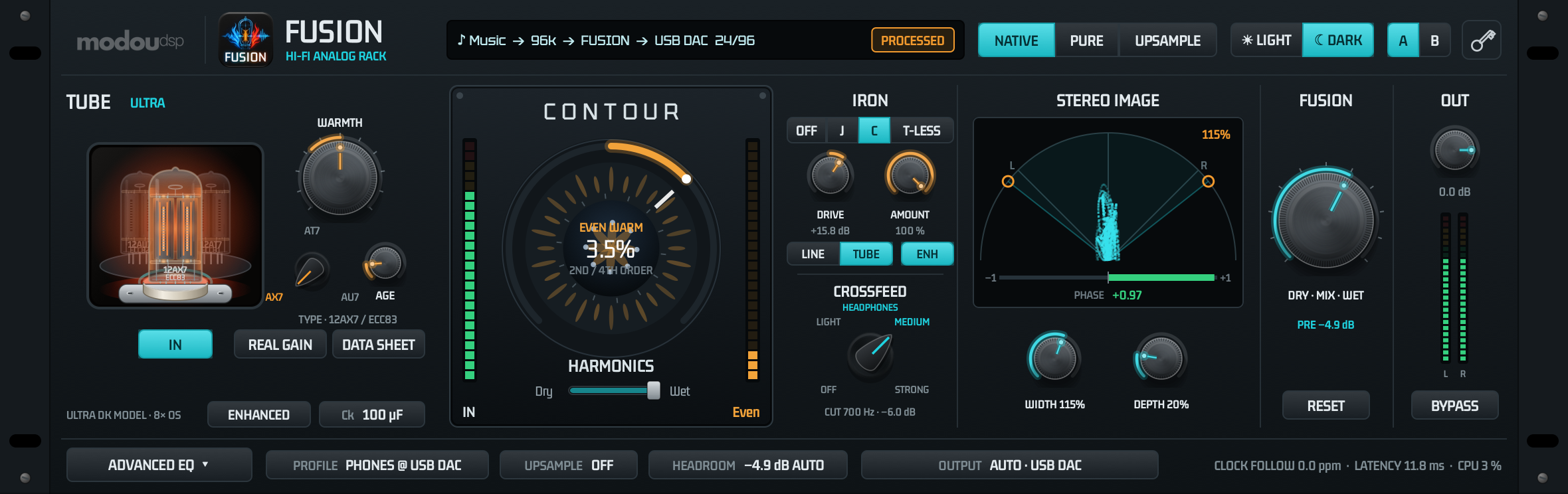
1
2
3
4
5
6
7
8
9
10
11
12
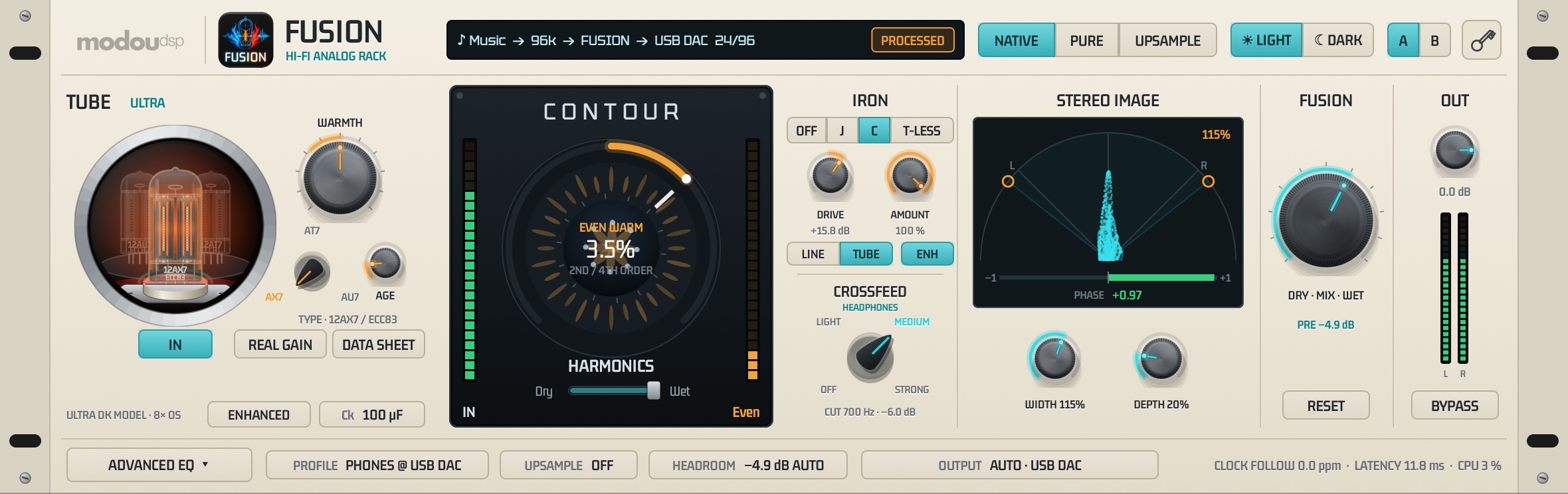
| 1 | Display — source, sample rate, DAC and status. |
| 2 | NATIVE / PURE / UPSAMPLE — operating mode. |
| 3 | LIGHT / DARK — window theme (DARK is the default). |
| 4 | A / B — two complete settings for comparison. |
| 5 | Utility key — license status and Machine ID. |
| 6 | TUBE ULTRA — tube stage. |
| 7 | CONTOUR — odd / even harmonics. |
| 8 | IRON / CROSSFEED — output stage and headphone crossfeed. |
| 9 | STEREO IMAGE — width, depth and goniometer. |
| 10 | FUSION — dry / wet blend; PRE shows the auto preamp. |
| 11 | OUT — output level, bypass and output meters. |
| 12 | Bottom strip — EQ, profile, upsampling, headroom, input sources, output device and engine status. |
Turn a knob by dragging up or down. Double-click a knob to return it to its default. While you drag, a small bubble shows the exact value. Hover over a control to see a short tip.
Display & Header

The display shows the path of the sound: source → source rate → FUSION → output device, bit depth / output rate. The badge on the right tells you what is happening to it.
| Badge | Meaning |
|---|---|
| PROCESSED | The rack is working (NATIVE). |
| RESAMPLED | The rack is working and the sound is upsampled (UPSAMPLE). |
| BIT-PERFECT | The samples reach the DAC unchanged (PURE). |
| UNLICENSED · ROUTE ONLY | No valid license: the sound is routed unchanged. Start a trial or activate in modou Central. |
| STOPPED | The engine is not running, e.g. no output device is available. |
| NO DRIVER | The modouFusion driver is missing. Run the installer again. |
| NOT ROUTED | Another app or System Settings switched the system output to a different device, so the sound no longer passes through modouFusion. Click the display to route it back. |
| WAITING | Core Audio has not answered for a moment (for example while a device starts up). modouFusion carries on as soon as it answers. |
TUBE ULTRA
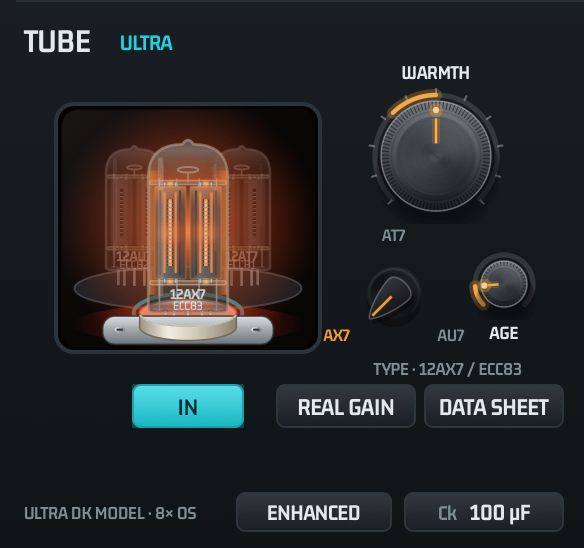
The tube stage of CYANO ULTRA: a physically modelled triode (DK model) running 8× oversampled at 44.1 / 48 kHz. It adds the warmth, density and gentle compression of a real tube line stage.
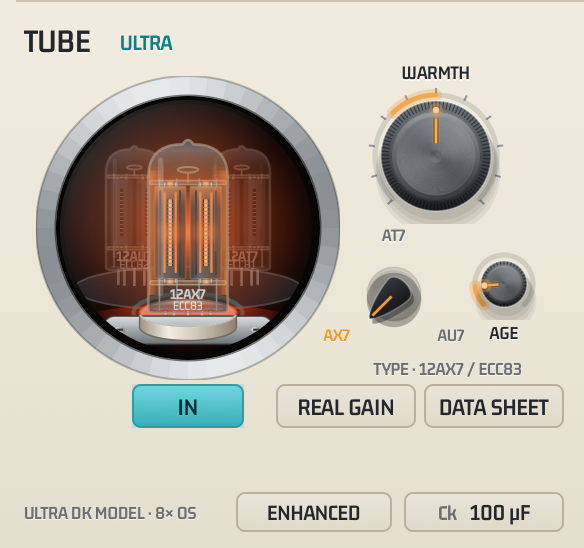
The light inside the tube follows the WARMTH knob: a dim heater at −12 dB, a warm glow around 0 dB and bright filaments with red-hot plates at +18 dB. On top of that the heater glows brighter and hotter (red → orange-yellow) with the signal and flashes when grid current flows — a visual aid, not physics. The tube sits in a noval (B9A) ceramic socket where the seated pins disappear into gold contacts; its ring pulses with the signal, and the drawing changes when you pick another type. In the LIGHT theme it looks like this:
NEW 1.1.0 Tube card and REAL GAIN
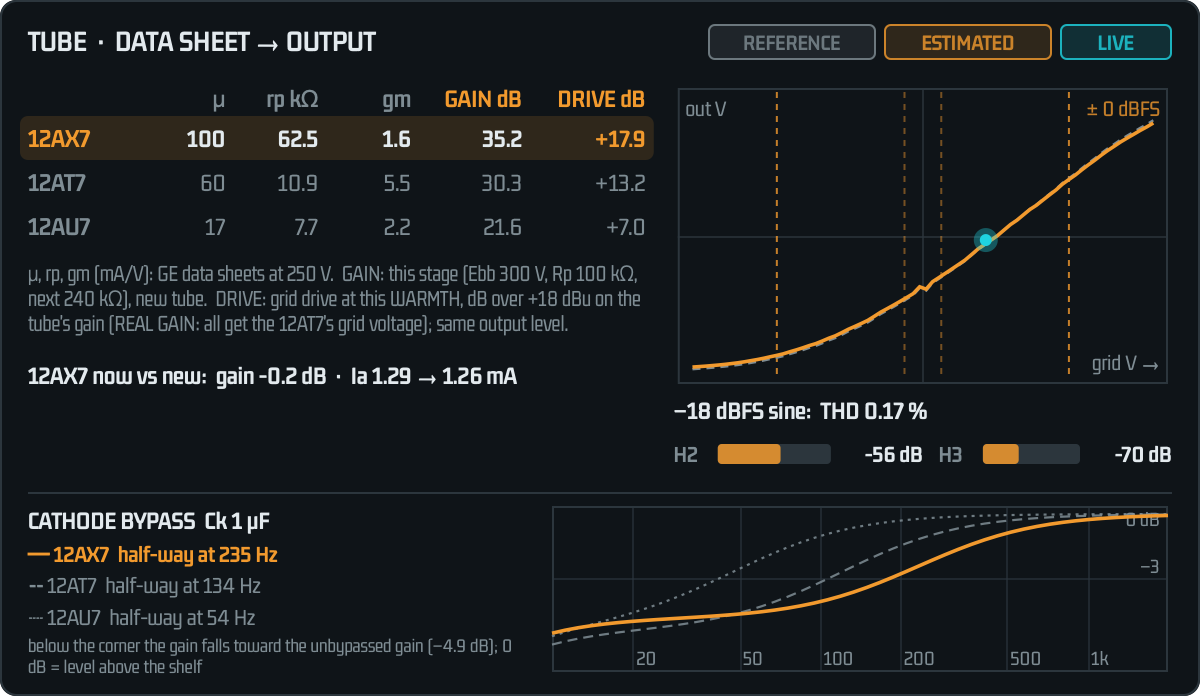
From CYANO ULTRA 1.0.2. DATA SHEET shows how the chosen tube's data-sheet values turn into the sound: its gain, its curve and how much it colours a typical level. Every figure is tagged: REFERENCE (GE data sheets), ESTIMATED (computed with the same tube model as the audio) and LIVE (the input right now). REAL GAIN drives every tube with the same grid signal, as in hardware.
NEW 1.1.1 Cathode bypass capacitor and a new tube drawing
From CYANO ULTRA 1.0.3. The Ck chip chooses the cathode bypass capacitor of the tube stage; with a smaller cap each tube gets its own low shelf, drawn at the bottom of the tube card. The drawing has a brighter red heater, a glow that follows the signal and a proper noval ceramic socket. At the default 100 µF the sound is the same as in 1.1.0.
CONTOUR
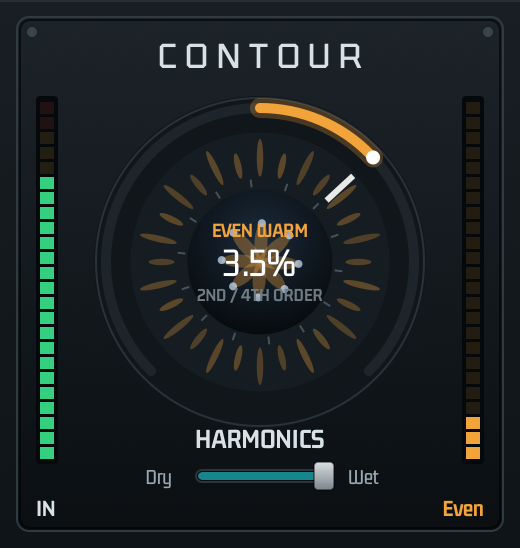
A harmonic shaper with one large dial. Up (or right) adds even harmonics — warm, round, “EVEN WARM”. Down (or left) adds odd harmonics — sharper, more forward, “ODD SHARP”. The centre is NEUTRAL: the sound passes unchanged.
The odd side is loudness-matched. Odd harmonics in phase with the music used to raise the level (up to about 0.8 dB at the 10 % end); a slow match (1 s) now takes that rise back, so ODD changes the character, not the volume. What stays is its effect on the peaks: after a saturating tube, ODD gives back part of the rounded-off peaks and lowers the tube's 3rd harmonic (12AX7 at +24: from −25 to −33 dBc at 100 %). That makes a touch of ODD a good partner for a hard-driven tube.
The meters on the left (IN) and right (Odd / Even) show the input level and the amount of harmonics added. Hold Shift while dragging for fine control; double-click the dial to return to NEUTRAL; the mouse wheel also works.
IRON
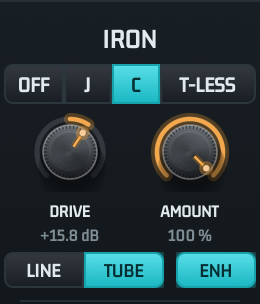
An output stage after the tube and CONTOUR, from CYANO ULTRA. Real output stages colour the sound in two different ways, and IRON offers both: a line transformer, whose iron core saturates and lags (hysteresis) mostly in the bass, and a transformerless solid-state stage, which adds its own harmonics across the whole range. Every type is level-matched — at low levels nothing changes — so you hear the colour, not a louder signal. Switching fades in 20 ms.
What to expect
Transformers are subtle by nature. On music J LINE adds about −95 dB — the iron behind a reference chain — and C TUBE about −42 dB, a gentle but clear weight and density in the bass. The T-LESS JFET and MOSFET colour far more (about −28 … −24 dB), in the range of the tube itself. With a hard-driven tube the tube dominates and IRON mainly shapes the bass. IRON adds about 13 % (J / C) or 22 to 29 % (T-LESS) to the CPU load of the tube stage.
A combination that works: drive the tube hard, add a touch of CONTOUR ODD (10 … 30 %) to give back some of the peaks the tube rounds off, then C TUBE for weight in the bass. Compare with BYPASS — the levels stay matched.
CROSSFEED
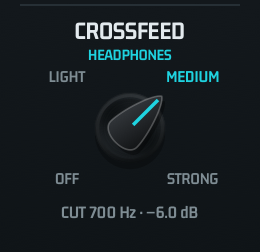
For headphones. From speakers each ear also hears the other speaker, a little later and with less treble; headphones keep the channels apart, so a hard-panned instrument sits inside one ear and long sessions get tiring. CROSSFEED gives each ear a low-passed, quieter copy of the other channel (Bauer's stereophonic-to-binaural network, as in bs2b) and leaves the bass of centre sounds at full level. No frequency gets louder than with OFF, so it needs no preamp, and switching crossfades without clicks. Leave it OFF for speakers.
STEREO IMAGE
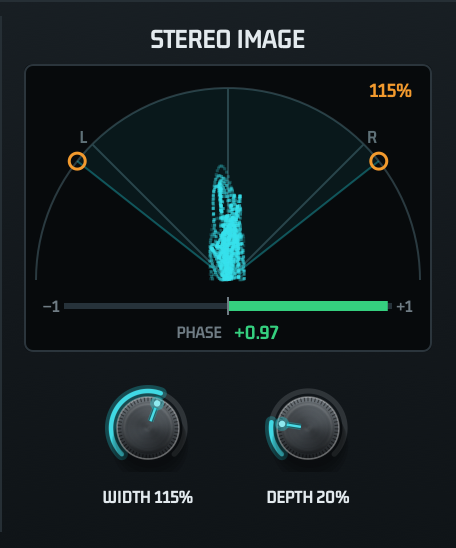
The goniometer shows the stereo picture live: a vertical shape is mono, a wide shape is wide; the orange wedge and the number at the top right are the WIDTH setting. The bar below is the PHASE meter (L / R correlation): +1 means both channels are identical (mono), 0 very wide or unrelated, −1 out of phase (cancels in mono). It grows from the centre mark in one direction only: to the right (green) for normal stereo, which usually reads +0.3 … +0.9, to the left (red) when the channels work against each other. The number next to PHASE is its current value.
FUSION, OUT & BYPASS
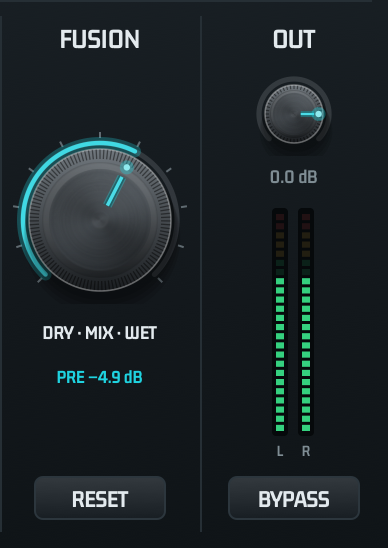
A gentle safety limiter sits at the very end and only acts above −0.3 dBFS, so loud settings never clip the DAC. While it works, the HEADROOM chip shows LIMIT in red; if that happens often, lower OUT or choose −3 dB HEADROOM. BYPASS skips it unless OUT raises the level above 0 dB.
Bottom Strip

ADVANCED EQ
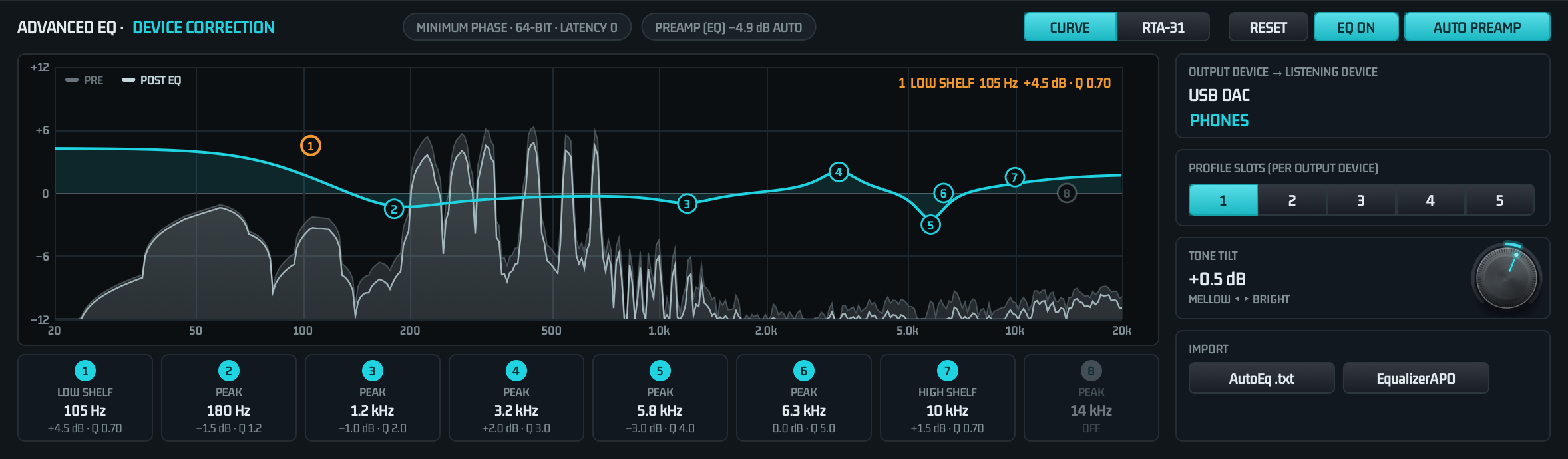
An 8-band parametric EQ for correcting headphones, speakers and rooms. It runs in minimum phase with 64-bit precision and adds no latency. EQ ON switches it in with a short crossfade; AUTO PREAMP adds the EQ's largest boost to the auto preamp so the correction never clips. Band changes glide or crossfade, so even fast edits stay click-free.
NEW 1.0.1 Live spectrum
While EQ ON is lit, the music is drawn behind the curve in real time. The grey area is the signal going into the EQ (PRE); the sharper line on top is the signal coming out (POST EQ). Move a band and watch the line change against the grey area, so you can see exactly what the correction does. The display follows the source sample rate and uses the same reference as the RTA-31, so pink noise reads flat and the music has the same shape in both views; it fades out when playback stops. It is a display only and never changes the sound.
NEW 1.0.3 RTA-31 LED analyzer
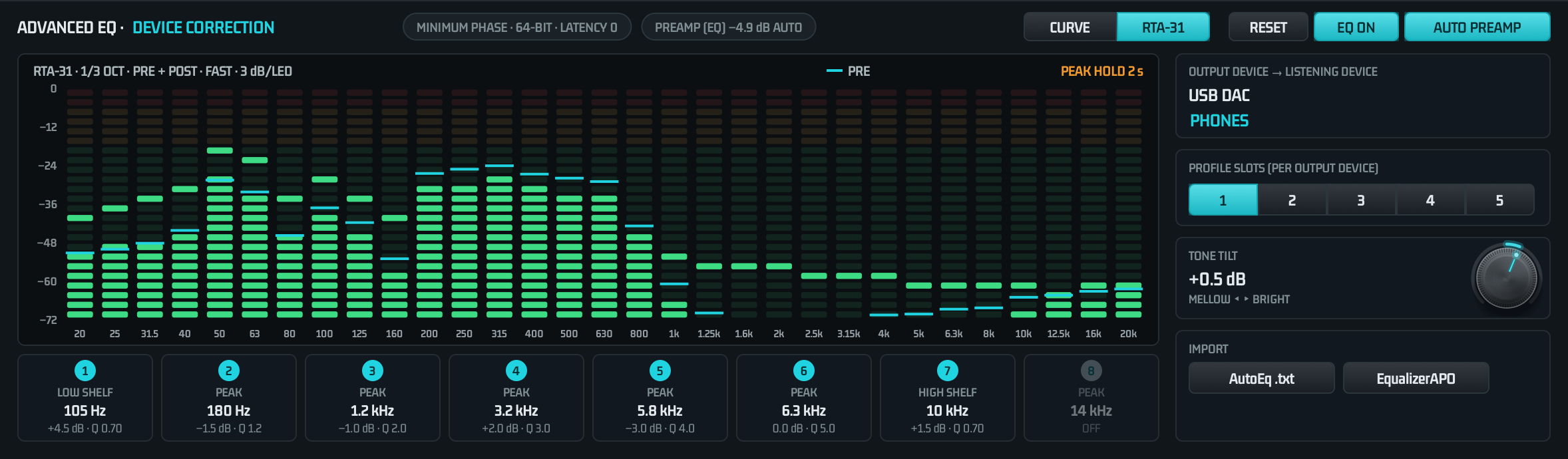
Click RTA-31 at the top of the EQ window to swap the curve for a real-time analyzer in the style of a hardware rack meter: 31 third-octave bands from 20 Hz to 20 kHz (ISO centres), 24 LEDs per band, the top two red and the next four amber. Because each band is a third of an octave wide, pink noise reads flat with no slope correction, the same reference as the spectrum behind the curve. It works with EQ off and in PURE as well, and CURVE brings the editor back. Click the analyzer for its options. Like the spectrum, it is a display only and never changes the sound.
Profiles & Import
EQ settings are stored per output device. Each device has five profile slots — for example one per pair of headphones you use with the same DAC. When you switch DACs, modouFusion loads that DAC's profile automatically.
- OUTPUT DEVICE → LISTENING DEVICE: double-click the profile name to rename it (e.g. “HD 650”).
- PROFILE SLOTS 1–5: click to recall a slot; changes are stored in the active slot.
- IMPORT: load an AutoEq
ParametricEQ.txtor an EqualizerAPOconfig.txt. Up to 8 filter lines are imported; the file's preamp is not needed because AUTO PREAMP takes care of headroom.
Headphone correction in one minute
Download the ParametricEQ.txt for your headphones from the AutoEq project, click AutoEq .txt, choose the file and switch EQ ON. Rename the profile after your headphones.
A/B & Themes
A and B are two complete sets of rack settings. Click the other letter to switch instantly — ideal for comparing two colours on the same song. Both are saved automatically.
modouFusion starts in DARK. LIGHT and DARK change the look of the window only. All settings, the window theme and the last output device are restored the next time you start modouFusion.
License & Utility
The square key button at the top right opens the Utility panel. It shows the license status, the Machine ID of this Mac and a button that opens modou Central. Close it with × or Esc.
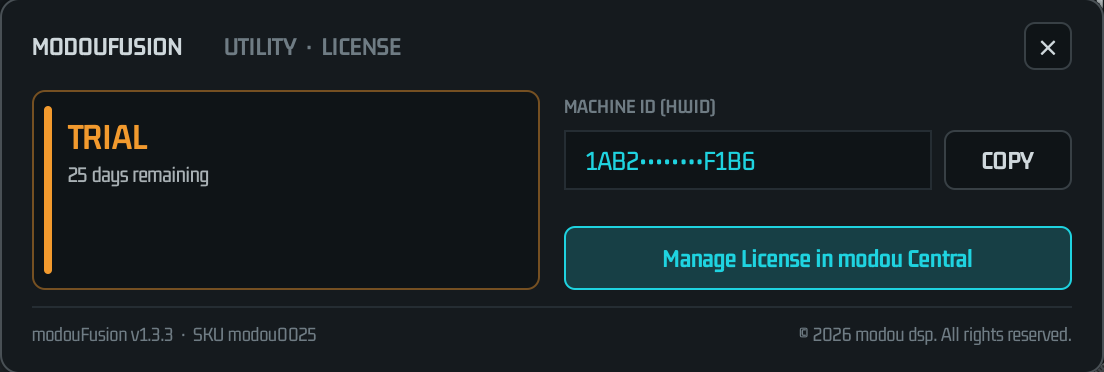
| Status | Meaning |
|---|---|
| ACTIVATED | Full license. Everything works. |
| TRIAL | Trial active. Everything works until the trial ends. |
| UNLICENSED | Routing only: the sound passes unchanged, the rack and upsampling are bypassed. |
| CHECKING | The license file is being read (a moment after start). |
Licenses are managed in modou Central 1.4.5 or later (SKU modou0025). COPY copies the full Machine ID for support requests.
Mouse Actions
| Action | Result |
|---|---|
| Drag a knob up / down | Change the value; a bubble shows it. |
| Double-click a knob | Back to the default value. |
| Click a legend of a selector knob | Jump to that position (TYPE, CROSSFEED). Clicking the knob steps to the next one. |
| Drag the CONTOUR dial | Up / right: even. Down / left: odd. Shift: fine. Wheel: adjust. |
| Drag an EQ node | Frequency and gain. Wheel: Q. Double-click: gain 0. |
| Right-click a band card | Filter type and on / off menu. |
| Double-click the profile name | Rename the profile. |
Troubleshooting & FAQ
The Mac's volume keys do nothing.
The modouFusion device has no volume control of its own, so the signal stays untouched. Use the volume of your DAC or amplifier, the player's volume, or the OUT knob.
Do I need an audio interface with a mixer?
No. Any Core Audio output works: a USB DAC such as an RME ADI-2, a Thunderbolt interface, the built-in speakers or the Mac's headphone jack.
I hear nothing after starting modouFusion.
Check the display and the output device at the bottom. If it reads STOPPED, pick your DAC explicitly instead of Auto. If the input permission is off, allow it (see Installation). If it reads NO DRIVER, run the installer again.
After quitting, the sound still goes to modouFusion.
Normally the output is handed back on quit, and since 1.3.0 also after a force quit or a crash. If it still points to modouFusion, choose your DAC again in System Settings › Sound › Output, or simply start and quit modouFusion once.
The rack does nothing and the display shows UNLICENSED · ROUTE ONLY.
Open modou Central 1.4.5 or later and start a trial or activate modouFusion. The app notices the new license by itself.
Which sample rate does my DAC get?
In NATIVE and PURE the DAC follows the source rate shown in the display. In UPSAMPLE it gets ×2, ×4 or its maximum rate. If a rate is refused, the display says so and the closest supported rate is used.
I hear clicks or dropouts.
Look at the dropout counter in the bottom strip. Close heavy apps, or try NATIVE instead of UPSAMPLE Max. Bluetooth outputs add their own latency and are not recommended for critical listening.
Specifications
| Version | 1.6.1 |
| System | macOS 10.13 (High Sierra) or later (Apple silicon: macOS 11 or later) · Universal (Apple Silicon and Intel) |
| Driver | modouFusion virtual device, stereo, 32-bit float, 44.1 – 384 kHz |
| Modes | NATIVE · PURE (bit-perfect) · UPSAMPLE (×2 · ×4 · Max) |
| Signal chain | TUBE ULTRA → CONTOUR → IRON → FUSION → STEREO IMAGE → CROSSFEED → auto preamp → ADVANCED EQ → OUT |
| Tube stage | CYANO ULTRA DK triode model, 12AX7 / 12AT7 / 12AU7 / 12AY7 / E88CC, REAL / ENHANCED MILD · WARM · HOT · STARVED, 8× oversampling at 44.1 / 48 kHz |
| Output stage | IRON: Jensen JT-11 and CineMag CMOQ-3S core models (Jiles-Atherton), JFET / OP-AMP / MOSFET stages (DK model, inside the tube stage's oversampling) |
| EQ | 8 bands, minimum phase, 64-bit, 0 latency, 5 profiles per output device |
| Latency | Depends on the DAC's buffer size and the mode; shown live in the bottom strip |
| License | modou dsp license via modou Central 1.4.5+ (SKU modou0025), trial and perpetual |
Files & Uninstall
| Path | Contents |
|---|---|
/Applications/modou dsp/modouFusion.app | Application |
/Library/Audio/Plug-Ins/HAL/modouFusion.driver | Audio driver |
~/Library/Application Support/modouFusion | Settings, A/B and EQ profiles |
~/Library/modouFusion | License cache |
~/Library/Logs/modouFusion | Log file (useful for support) |
To uninstall, run modouFusion-1.6.1-Uninstall.pkg from the DMG. It removes the app and the driver and restarts the audio service; you can choose to remove your settings as well.
License & Support
modouFusion licenses are managed in modou Central. For help, write to modou dsp with your Machine ID (Utility panel › COPY) and, if possible, the log file.
© 2026 modou dsp. All rights reserved.