Get Running
1. Install & activate
- Install mSC and modou dsp central. Activate your licence (or start a trial) in Central. Get Central at modoudsp.com/central.
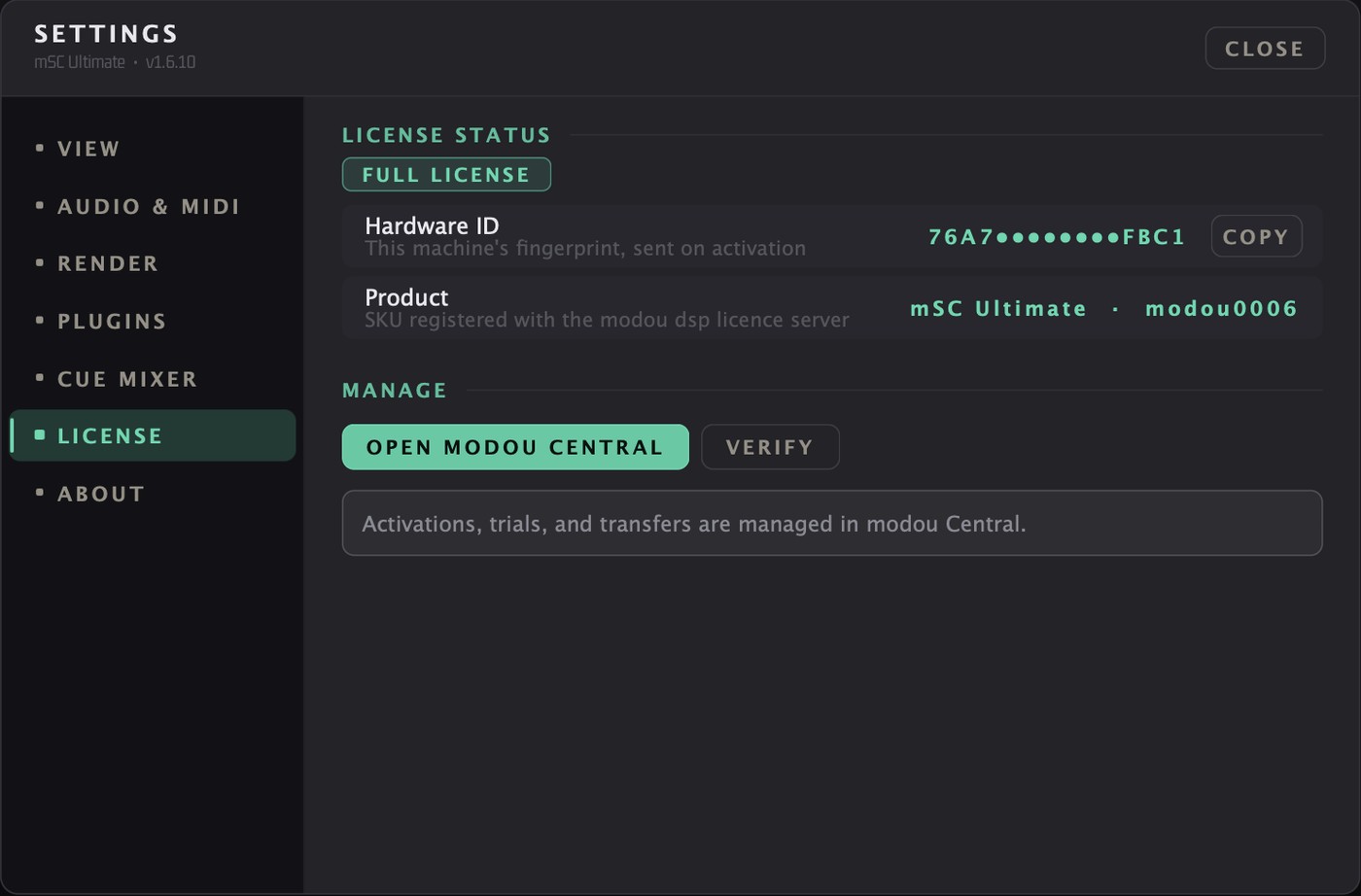
- Start mSC. If a red “NO LICENSE” bar appears, press Get Licensed, finish in Central, then Settings › License › Verify. Without Central installed, Get Licensed opens modoudsp.com/central.
- Allow the microphone when macOS asks (needed for the measurement mic and talkback). Allow Automation for Music if you want the MEDIA panel.
2. Setup Wizard
On first launch the wizard opens. Fast path:
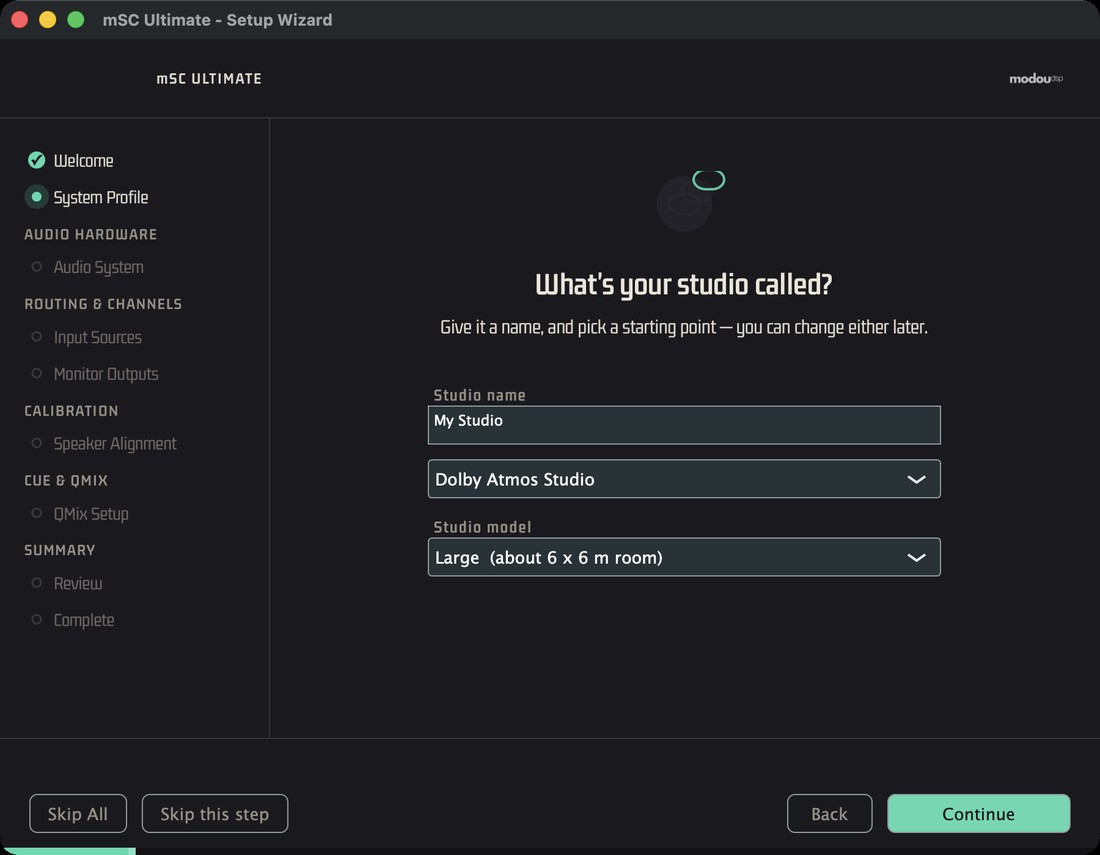
- System Profile: name your studio and pick a template (Stereo, Surround, Dolby Atmos, Immersive, Live, Custom).
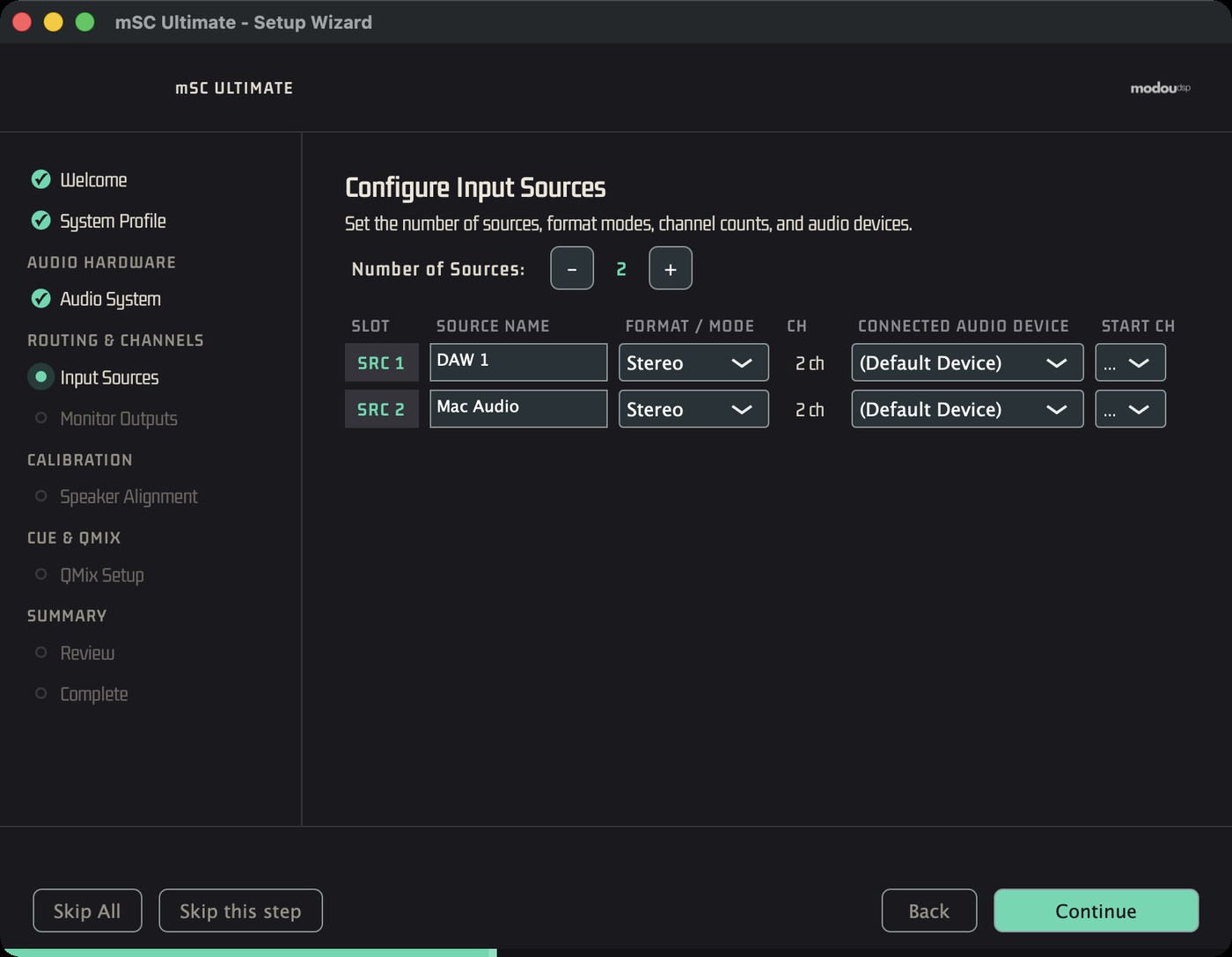
- Input Sources and Monitor Outputs: set how many, their format and the first device channel of each.
- Speaker Alignment: choose “Do This Later” for now.
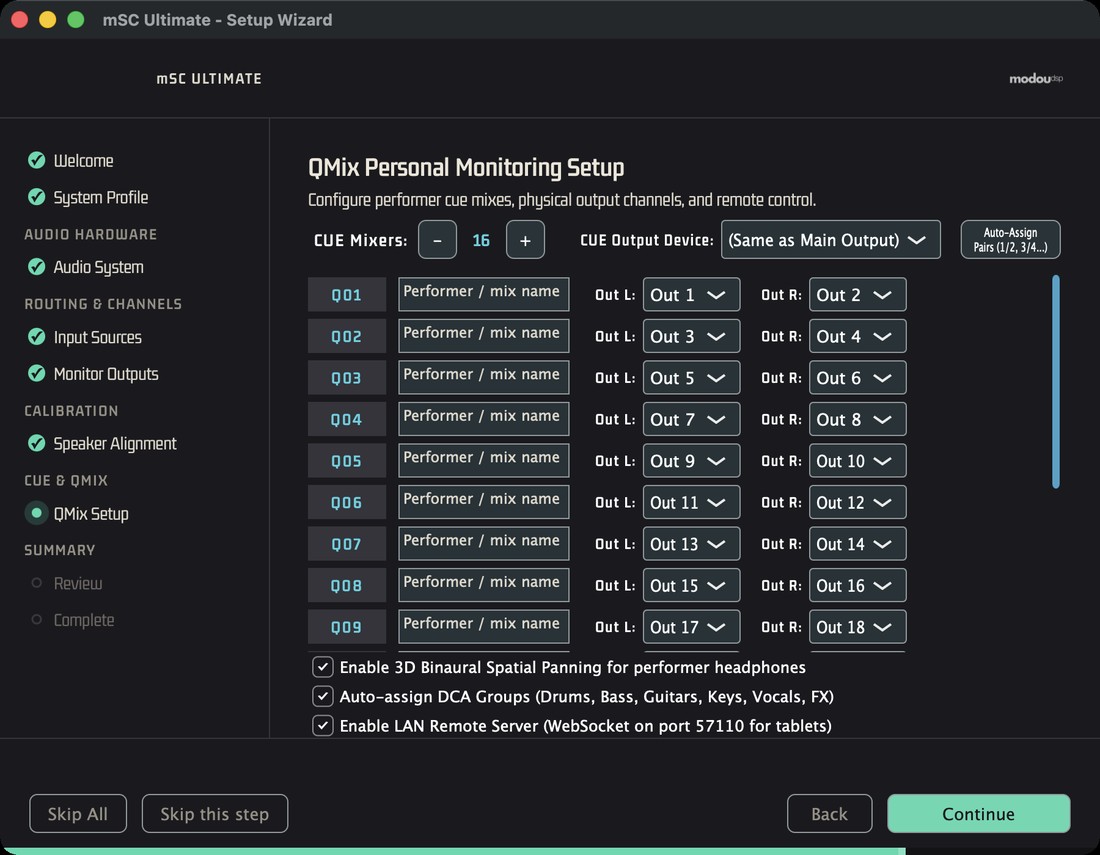
- QMix Setup: keep 16 mixers, enable the LAN remote server if performers will use phones.
- Review → Create My Studio → Open My Studio. No time? Skip All builds the recommended defaults.
3. First sound — safely
Check the level first
>The app starts at −10 dB. Lower the MONITOR LEVEL knob before you press play, then raise it. The CUT button under the knob mutes the output; Option+click on the knob resets to −10 dB.
- Click a source on the left (S1…S8) — it becomes the only active source.
- Click a speaker set (SP1…SP8).
- Play audio from your DAW, or open a file in the PLAYER tab and press play (Space).
- Watch the 3D view and the meters. Click a meter to solo that channel, Option+click to mute.
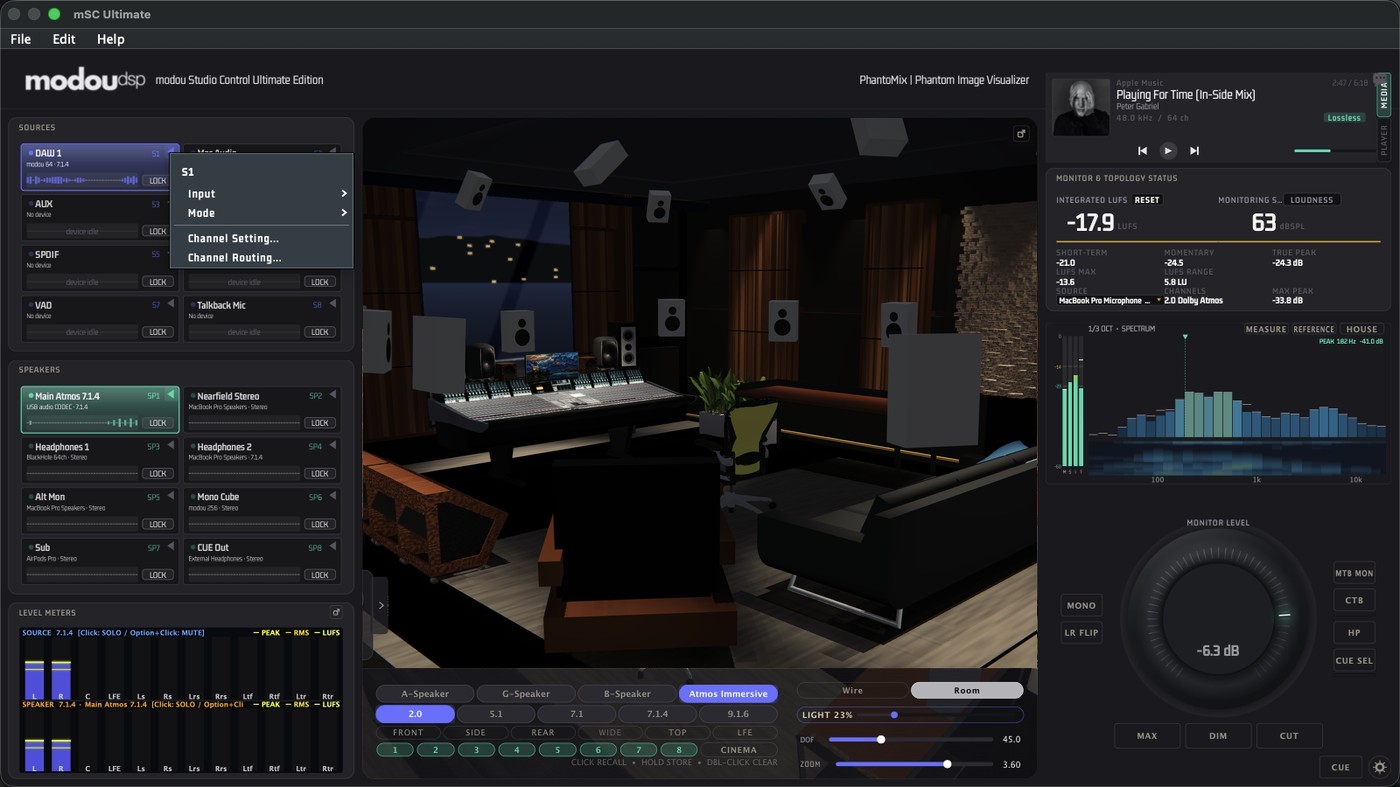
Know the Screen
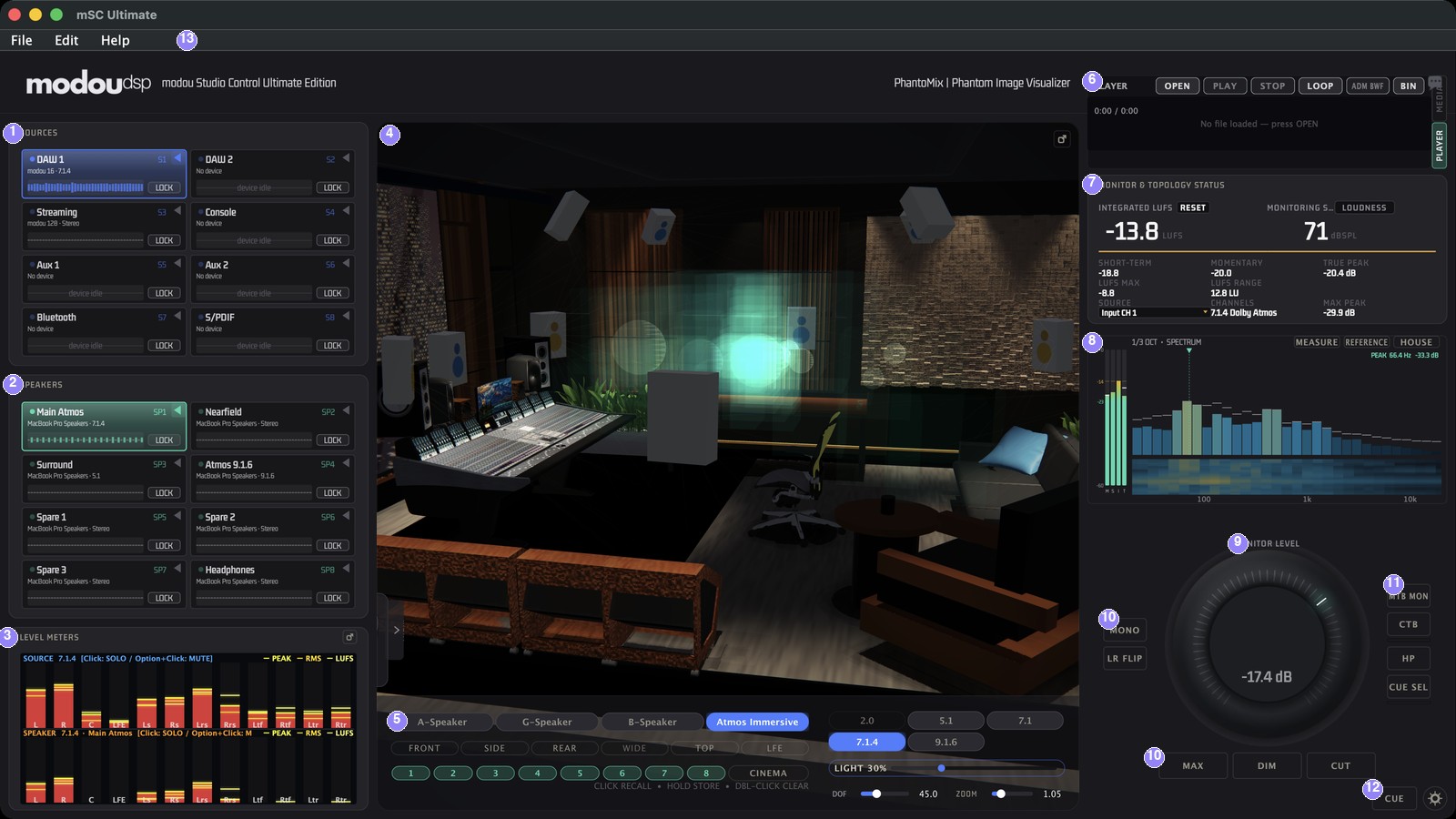
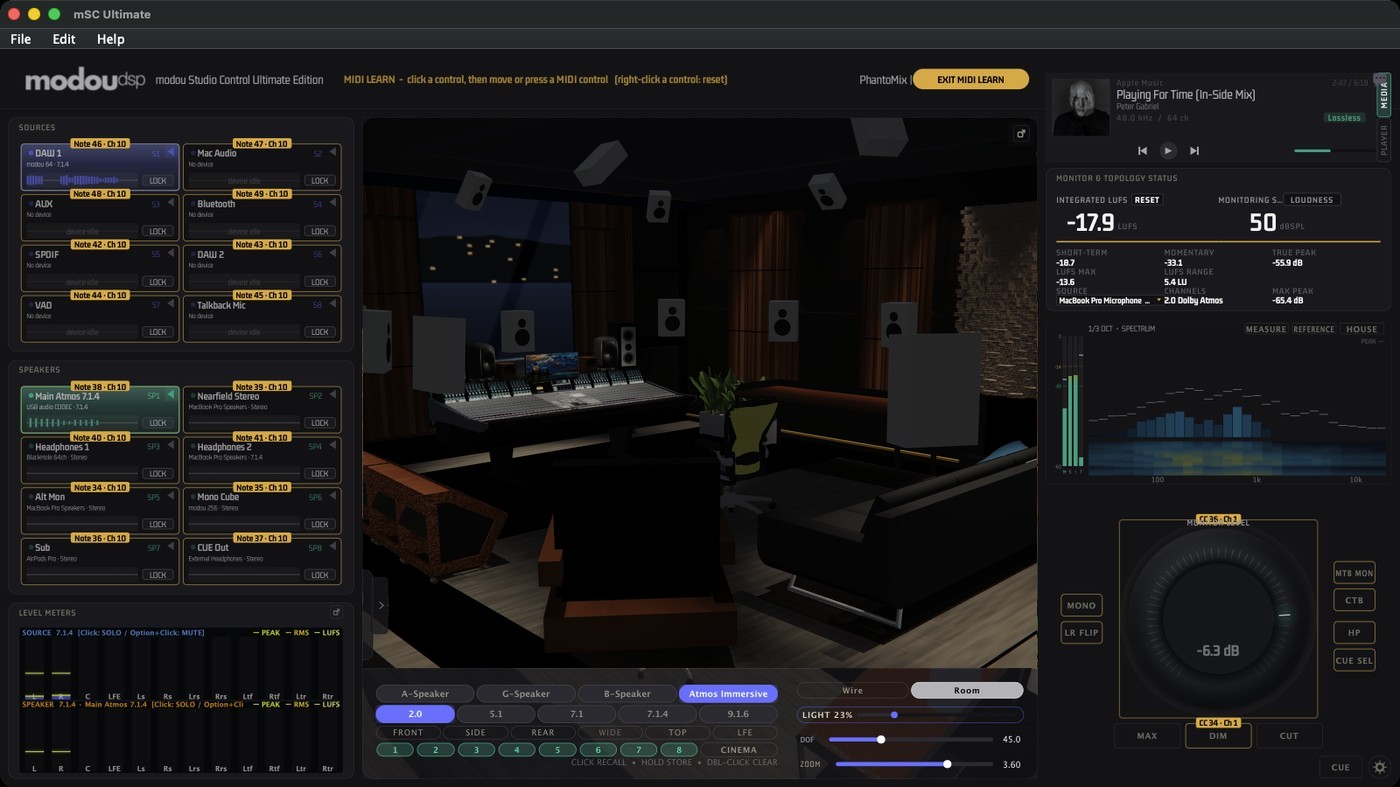
4. Window map
| Where | What |
|---|---|
| Left | Sources, speakers, level meters |
| Centre | 3D sound field — drag to orbit, wheel to zoom, click a speaker to solo |
| Right, top | MEDIA / PLAYER, loudness and SPL status |
| Right, middle | Analyser with M S I T loudness bars |
| Right, bottom | Monitor Level knob, MONO · LR · MAX/MINI/KNOB · DIM · CUT · CUE SEL · MTB · CTB · HP |
| Bottom corner | CUE (QMix) and the gear (Settings) |
Do the Essentials
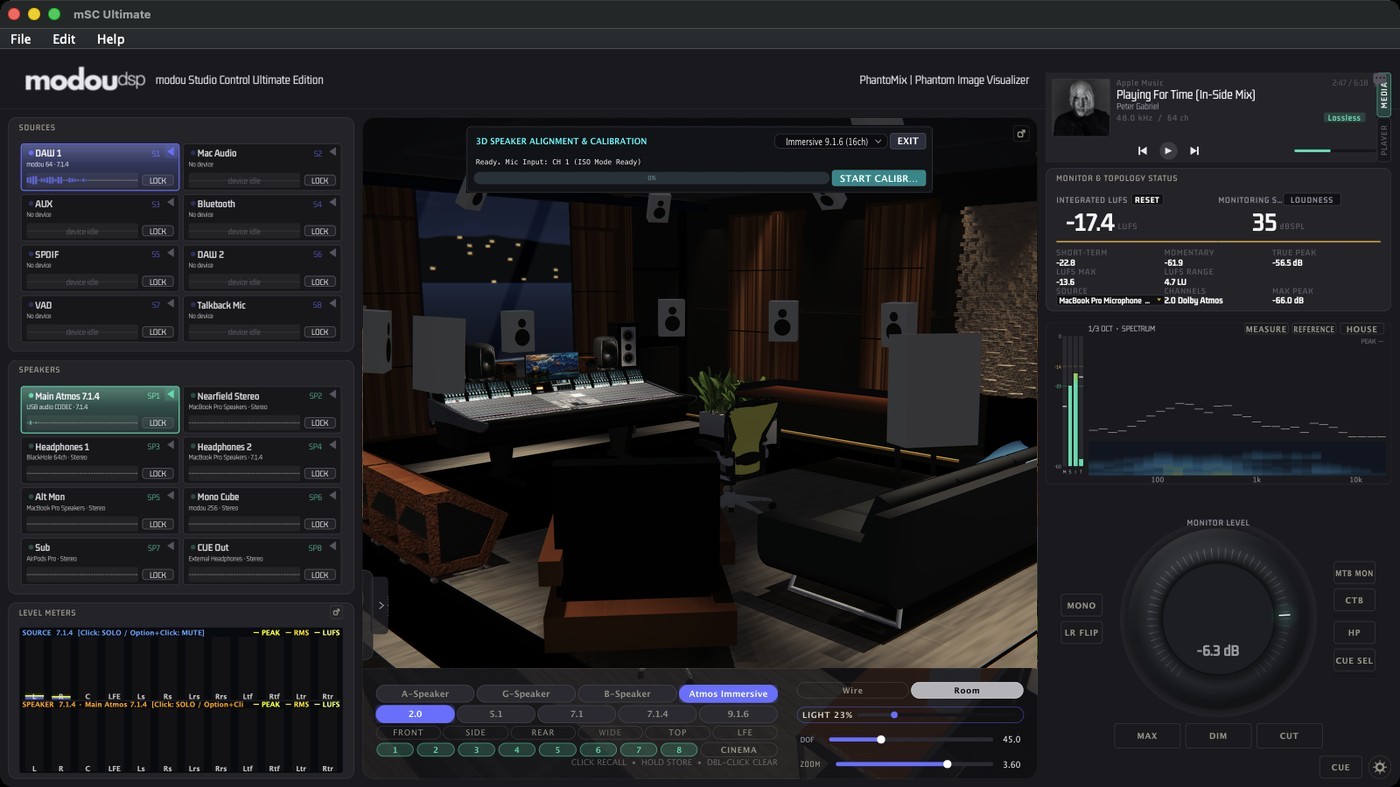
5. Calibrate the speakers
- Connect a measurement microphone and choose its input in the status card's SOURCE.
- Open Settings › Audio & MIDI, find Speaker Alignment & Calibration and press GUIDED SETUP….
- Pick the layout at the top of the 3D view and press START CALIBRATION. The sweep ignores your monitor volume and limiter — be ready to stop it.
- When it finishes, compare ALIGNED / BYPASS, then press SAVE & APPLY (or REDO if anything sounds wrong).
6. Give a performer a mix
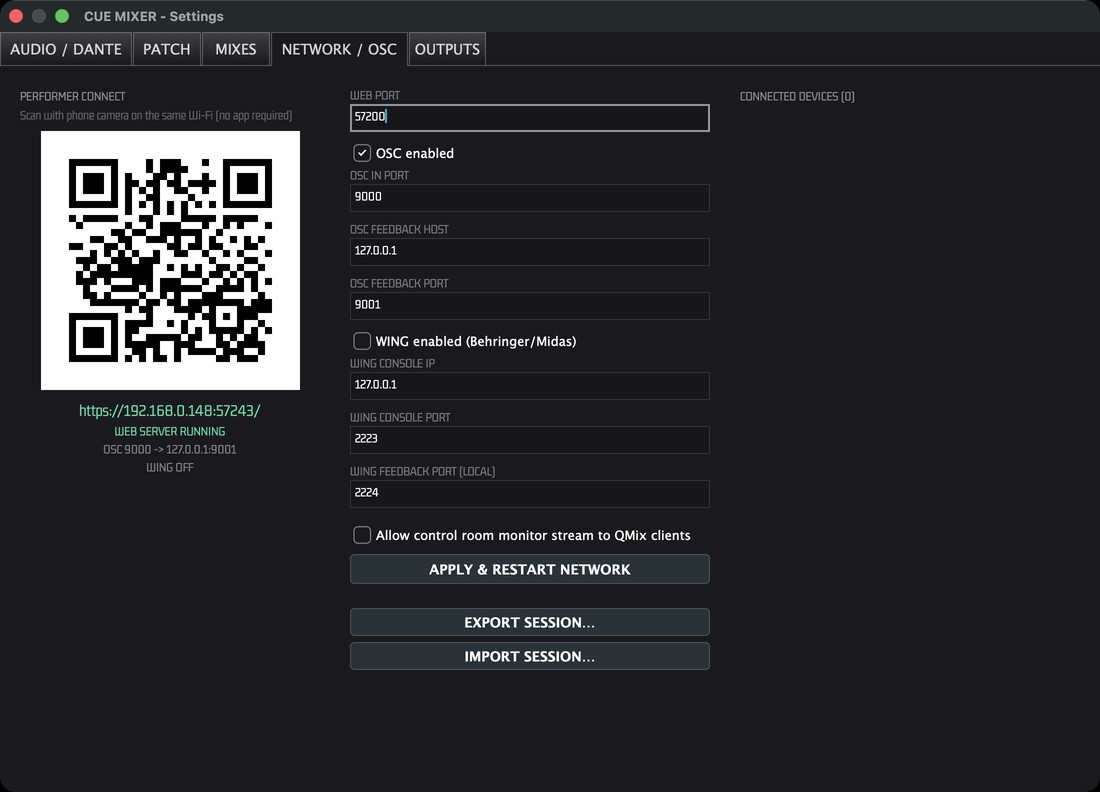
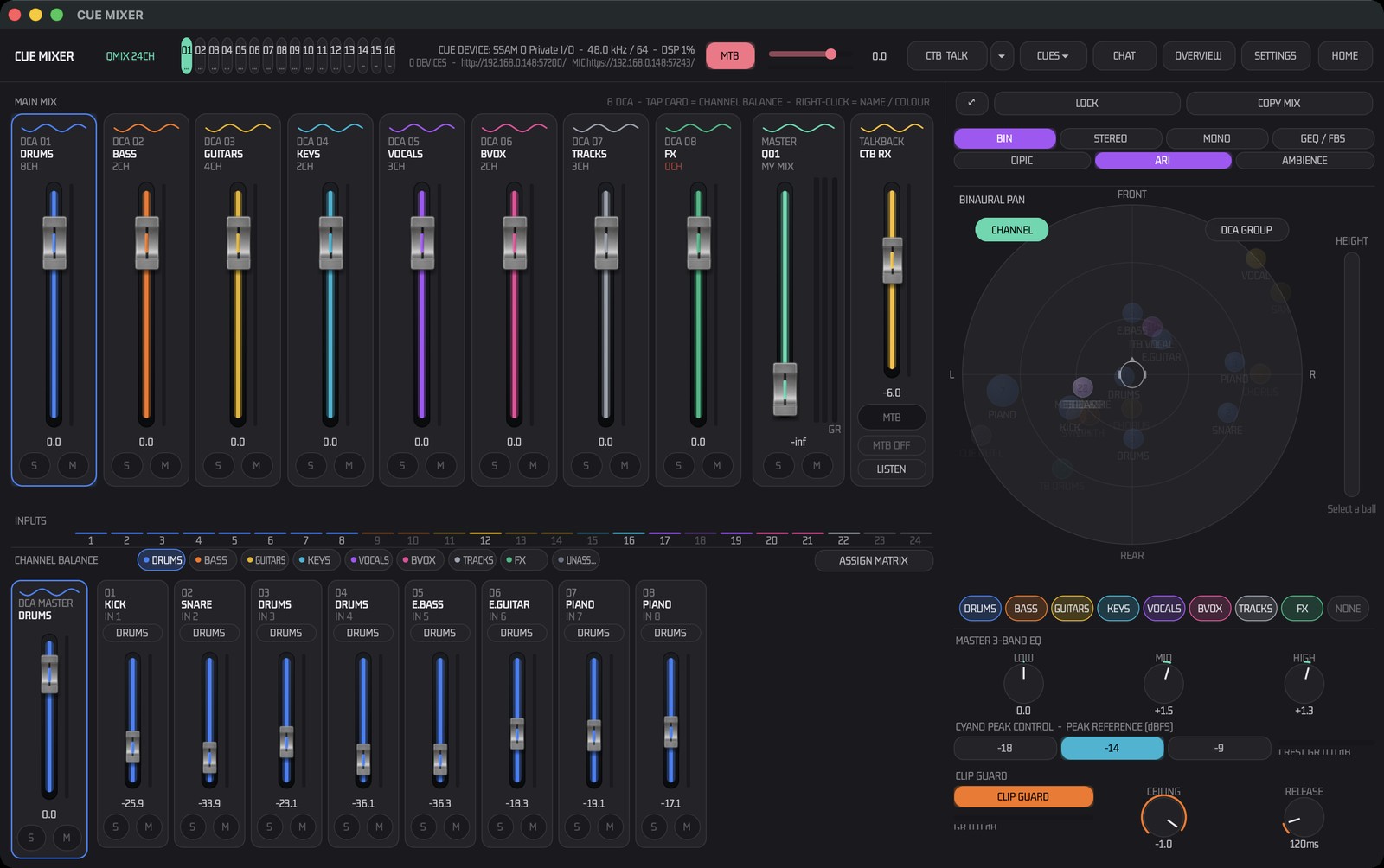
- Press CUE (bottom right) to open the CUE MIXER.
- In SETTINGS › AUDIO / DANTE choose the CUE output device; in MIXES assign each mix an output pair and a performer name.
- In NETWORK / OSC show the QR code. The performer scans it with the phone camera (same Wi-Fi) and gets their mix page — no app needed.
- Use the DCA cards and CHANNEL BALANCE to set the starting balance; drag balls in BINAURAL PAN to place instruments around the head.
- Press CUES ▾ › + NEW to store this as a cue you can recall between songs.
7. Talk to the band
- CTB — press and hold (≥ 0.5 s) to talk to performers; a short press latches it on.
- MTB MON — hear the performers' talkback microphone in your monitors.
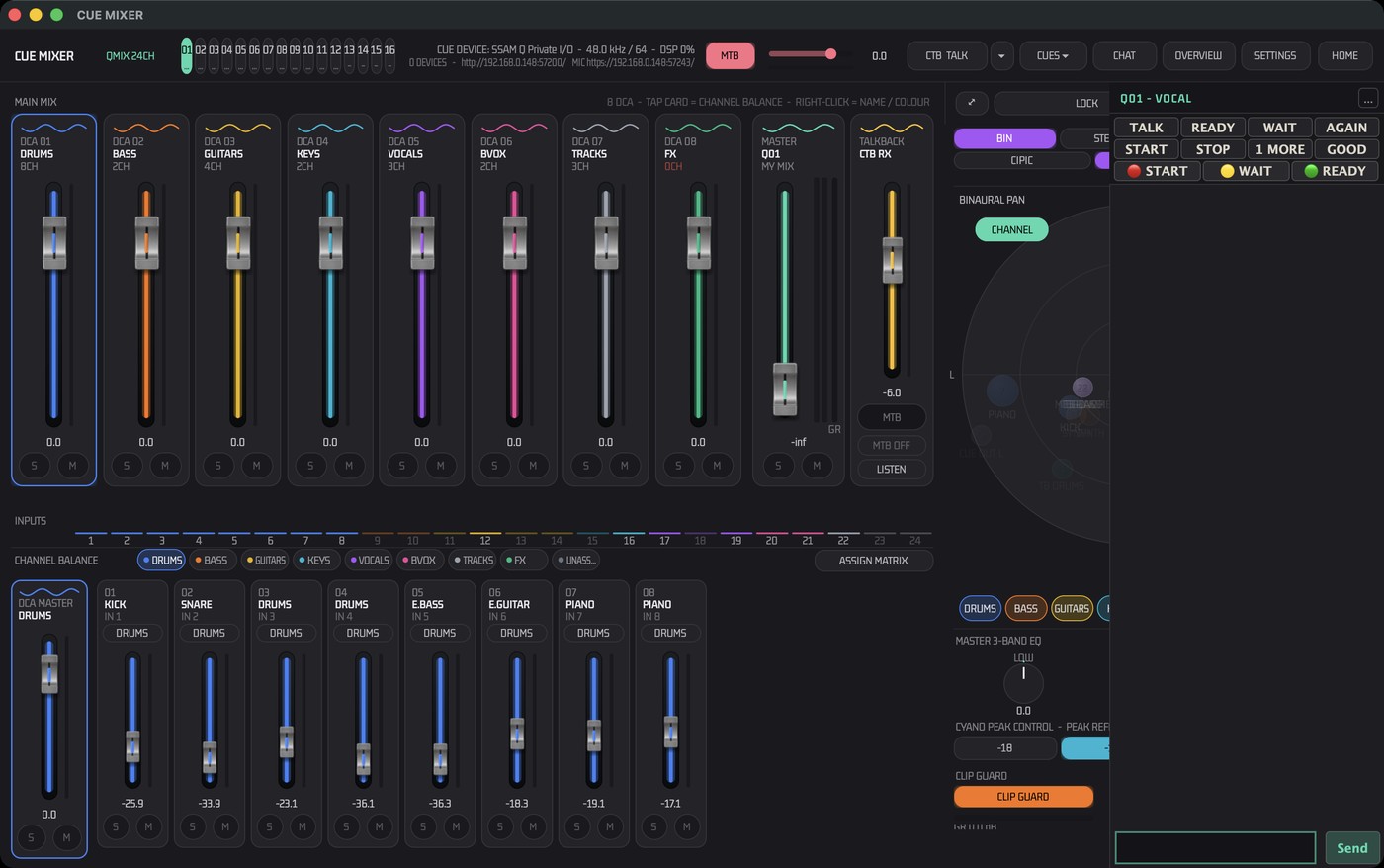
- Chat: open CHAT in the CUE MIXER header and use the quick buttons (READY, WAIT, START…).
8. Hardware control (MIDI Learn)
- Settings › Audio & MIDI › MIDI controller [Open] — choose your device.
- Set MIDI learn to Learn, click a control (for example the Monitor Level knob), then move the hardware knob.
- Press EXIT MIDI LEARN in the top bar. Bindings are saved automatically.
Cheat Sheet & Help
9. Cheat sheet
| Do this | To get |
|---|---|
| Space | Play / pause the built-in player |
| CUT button (under the knob) | CUT on / off |
| Option + click knob | Reset level to −10 dB |
| Double-click source | Add to multi-selection |
| Padlock on a slot | Keep it selected while choosing others |
| Option + click slot | Channel Routing table |
| Click / Option+click meter | Solo / mute that channel |
| Fader double-click (QMix) | Reset to 0 dB |
| Shift + drag fader | Fine adjustment |
| ← → in CUE MIXER | Previous / next mix |
| O / P in CUE MIXER | OVERVIEW / BINAURAL PAN window |
10. If something is wrong
| Problem | Try |
|---|---|
| No sound / red licence bar | Activate in Central, then Settings › License › Verify. |
| Loudness shows −INF | Pick an active source and play audio. |
| Phone cannot open the mix page | Same Wi-Fi, firewall allows mSC, re-scan the QR, or open the URL shown in NETWORK / OSC. |
Want the details?
>Every screen, setting and port is described in the mSC System Manual.